
If the side flipper buttons do not work when playing Star Wars Pinball VR on Meta Quest using the Gen2 Wireless Dongle, this is expected behavior until the in-game control setting is adjusted.
This is not a firmware issue and does not require remapping or any hardware changes.
Cause
By default, Star Wars Pinball VR assigns flippers to LT / RT, which do not map to the physical side flipper buttons on the Arcade2TV-XR.
In addition, the LT / RT options will only appear in the TV screen control menu if you are actively navigating the game using the Arcade2TV-XR controller.
Solution (Required In-Game Setting Change)
⚠️ Important:
You must use the Arcade2TV-XR controller to walk and navigate inside the game before changing this setting.
Controller navigation requirements
Use the following controls on the Arcade2TV-XR:
Left joystick – Move / walk
Right joystick – Look / rotate view
ABXY buttons – Menu interaction and selection
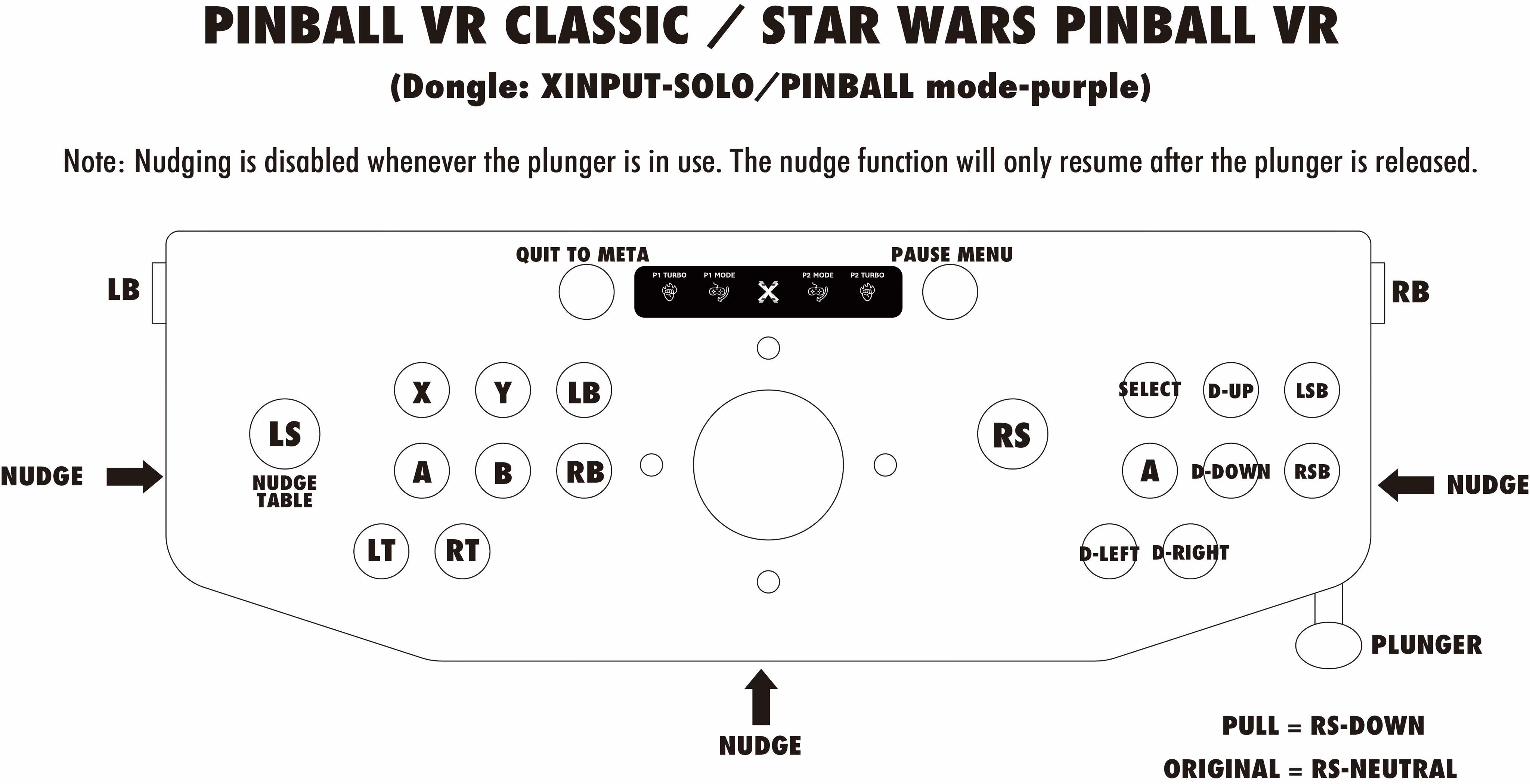
This ensures the correct controller profile is active and allows LT / RT to appear in the TV screen options.
Steps
Launch Star Wars Pinball VR on your Meta Quest.
Using the Arcade2TV-XR controller (not Quest controllers):
Walk up to the TV screen inside the game environment.
Open Options.
Go to Control Customization.
Change the flipper controls from:
LT / RT
→ LB / RB
Confirm and exit the menu.
Result
Once this change is applied:
The physical side flipper buttons on the Arcade2TV-XR will work correctly.
No restart, re-pairing, or firmware update is required.
Notes
This setting is specific to Star Wars Pinball VR.
Other pinball titles (such as Pinball FX VR) do not require this adjustment.
The selected control layout is saved by the game and will persist for future sessions.